Last updated: October 2026
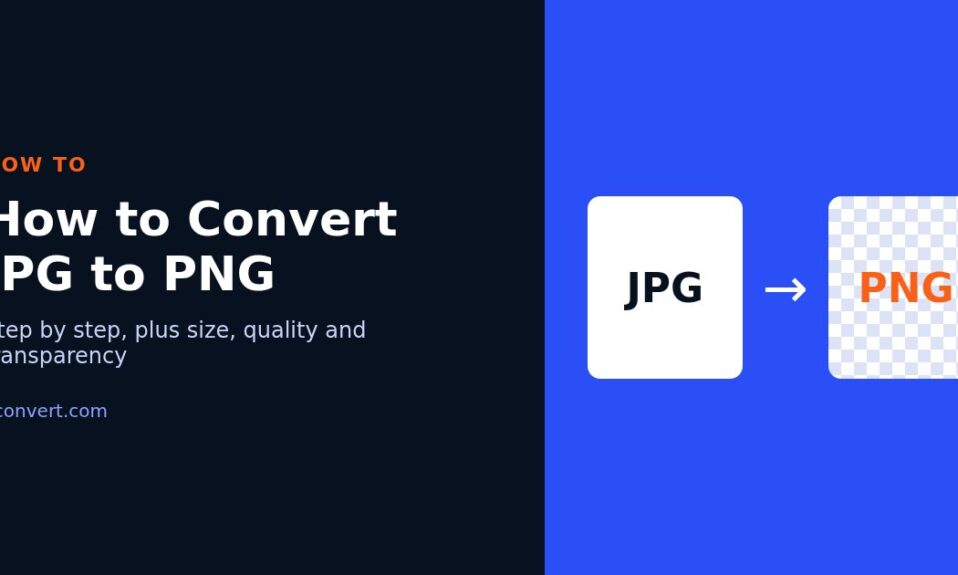
Short answer: to convert JPG to PNG, open the JPG to PNG converter, click Choose Files, pick one or more JPG images, set the options if you need them (lossless compression, quality, metadata), convert, and download the PNG. It takes a few seconds per file. One thing to know before you start: converting does not make the picture sharper and does not remove the background on its own. PNG stops further quality loss. It can’t undo the loss that already happened when the JPG was saved.
That second part is where most of the confusion comes from, so I’ll come back to it after the steps.
Why convert a JPG to PNG at all?
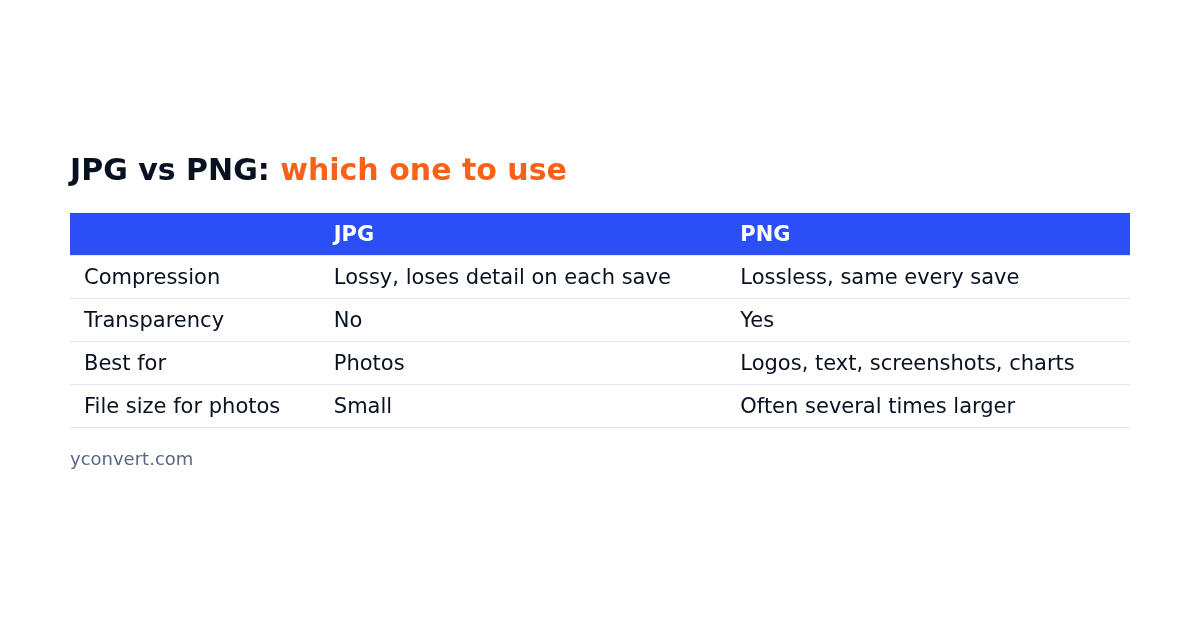
JPG is a lossy format. Every time it is saved, the file throws away some detail to stay small. That’s fine for photos. It’s a problem for anything with sharp edges and flat colour, like text, logos, charts or screenshots, where you start to see fuzzy halos around the letters.
PNG is lossless. Save it ten times and it looks the same as the first time. It also supports transparency, which JPG doesn’t.
The common reasons I see for switching:
- You need to keep editing the image. A designer working on a restaurant menu graphic doesn’t want quality to drop with every round of changes.
- A form or platform asks for PNG. Some upload fields, print portals and app stores only take PNG.
- The image has text or line art. A price table for a gym’s membership page reads more cleanly as PNG.
- You plan to make the background transparent in an editor after converting.
How to convert JPG to PNG, step by step
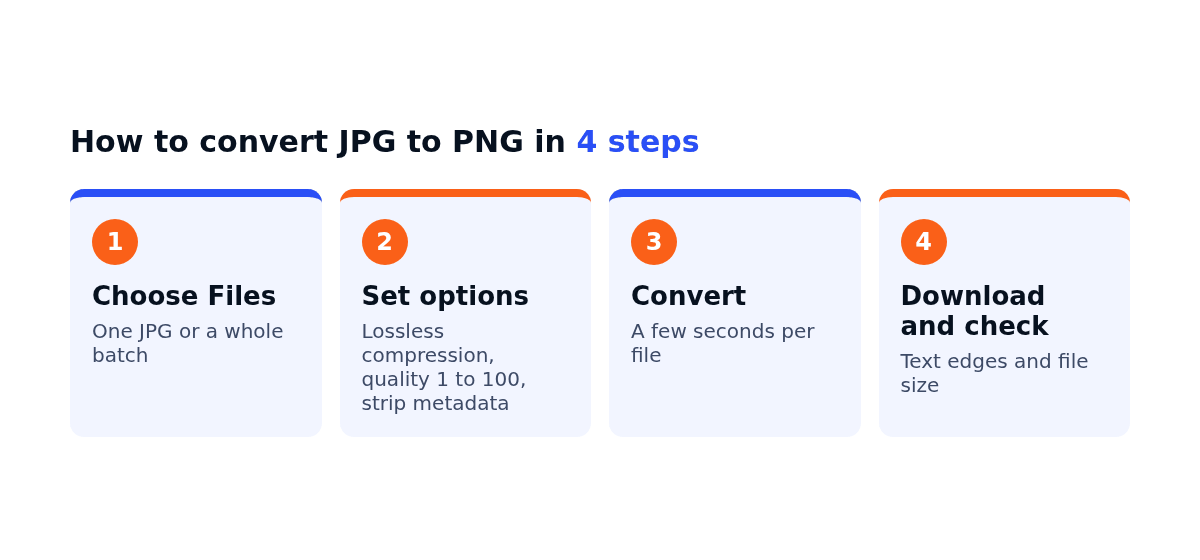
Step 1: Open the converter and choose your files
Go to the converter page and click Choose Files. You can pick a single JPG or select several at once if you have a batch, like a folder of product shots for an online furniture store.
Step 2: Set the output options
You’ll see a few settings. You can leave them as they are, but here is what each one does:
- Lossless compression: shrinks the PNG without changing a single pixel. Turn this on unless you’re in a hurry.
- Image quality (1 to 100): lower values give smaller files with some loss. For screenshots and graphics, keep it high.
- Compression speed: trades speed for a better result. Slower usually means a smaller file.
- Strip metadata: removes EXIF data, colour profiles and comments. Good for privacy, since photo EXIF can include the camera and sometimes the location.
Step 3: Convert
Start the conversion and wait a moment. Larger images take a little longer.
Step 4: Download and check the PNG
Download the file and open it. Check the edges of any text, and check the file size. That second check matters, and here’s why.
Will my PNG be bigger than the JPG?
Usually, yes. Often a lot bigger.
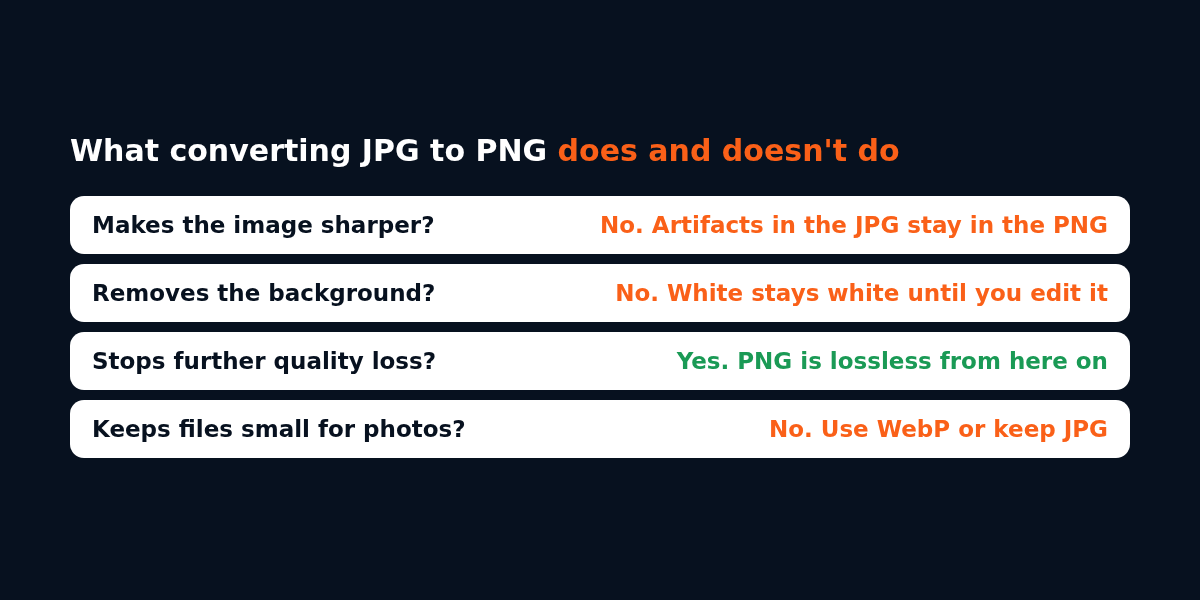
A photo saved as PNG can easily end up several times the size of the original JPG, because PNG keeps every pixel exactly instead of approximating. For a full-colour photo of, say, a property listing for a real estate agent, that’s rarely worth it. For a screenshot or a logo with large flat areas, the PNG may be close in size or even smaller.
My rule of thumb: photos stay JPG (or go to WebP for the web), graphics go to PNG. If you’re converting a photo just to put it on a website, converting JPG to WebP will usually give you a far lighter file at similar quality. JPG to AVIF goes smaller still, if your site supports it.
Does converting JPG to PNG improve quality?
No. This is the most common misunderstanding.
If a JPG has blocky artifacts, the PNG will have exactly the same artifacts. PNG just preserves what’s there. What it does do is stop things getting worse from here on. So if you’re about to edit and resave an image several times, convert to PNG first, do your edits, and export to whatever final format you need at the end.
Can I get a transparent background?
Not by converting alone. A JPG has no transparency data, so the background (usually white) comes across as solid white pixels in the PNG.
To make it transparent, convert first, then remove the background in an image editor. It works best when the background is one flat colour that doesn’t appear in the subject. A white logo on a white background is going to be painful whatever tool you use. A dark logo on plain white is easy.
After removing it, zoom in on the edges. You’ll often see a thin pale fringe left over from the old background. Clean that up before you put the logo on a dark page header, or it will show.
Common problems and quick fixes
| Problem | Likely cause | Fix |
|---|---|---|
| PNG file is huge | It’s a photo | Keep it JPG, or use WebP |
| Text still looks fuzzy | Artifacts were in the original JPG | Find the original source file or recreate the graphic |
| Background is still white | JPG has no transparency | Remove it in an editor after converting |
| Colours look slightly different | Colour profile was stripped | Convert again with metadata kept |
| Upload rejected | File too large for the form | Turn on lossless compression or resize first |
A quick example
Say a dental clinic has a JPG of its opening hours that it wants on the website and in a printed flyer. The flyer designer will edit it a few times, so I’d convert to PNG first, keep it as the working file, then export a PNG for print and a WebP for the website. Two outputs, one clean master.
That’s the whole idea really. PNG is a good working format and a good format for graphics. It isn’t a magic quality button.
FAQ
How do I convert a JPG to PNG for free?
Open the JPG to PNG converter, click Choose Files, select your images, convert them and download the PNG files. You can convert one image or several at once.
Does converting JPG to PNG reduce quality?
No. PNG is lossless, so the conversion keeps the image exactly as it was. It also won’t improve quality, because any loss from the original JPG compression stays in the file.
Why is my PNG larger than the JPG?
PNG stores every pixel without approximation, so photos with lots of colour and detail grow a lot. Graphics with flat colour, text and sharp lines stay much closer in size.
Can I convert JPG to PNG with a transparent background?
Converting alone keeps the background solid, since JPG has no transparency. Convert the file to PNG, then remove the background in an image editor and save it as PNG again.
Should I use PNG or WebP for my website?
For photos, WebP is usually the better choice because the files are much smaller. Use PNG for logos, icons, screenshots and graphics with text, or when you need lossless quality.