Last updated: October 2026
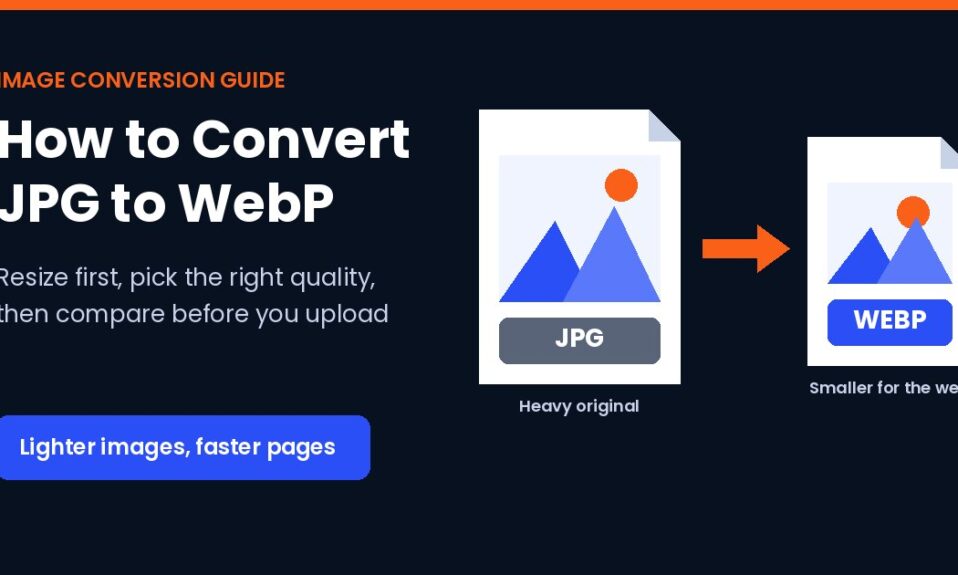
Short answer: to convert JPG to WebP, open the JPG to WebP converter, click Choose Files and select one or more JPGs, leave the output as WebP, set the quality (somewhere around 75 to 85 suits most photos), keep lossless compression off, then click Convert All and download. Before you do any of that, resize the photo to the width your page actually shows. That one step usually saves more weight than the format change itself.
I convert a lot of JPGs to WebP during site audits. The format is rarely the hard part. Picking the right size and quality is, so most of this post is about that.
Why WebP instead of JPG on a website?
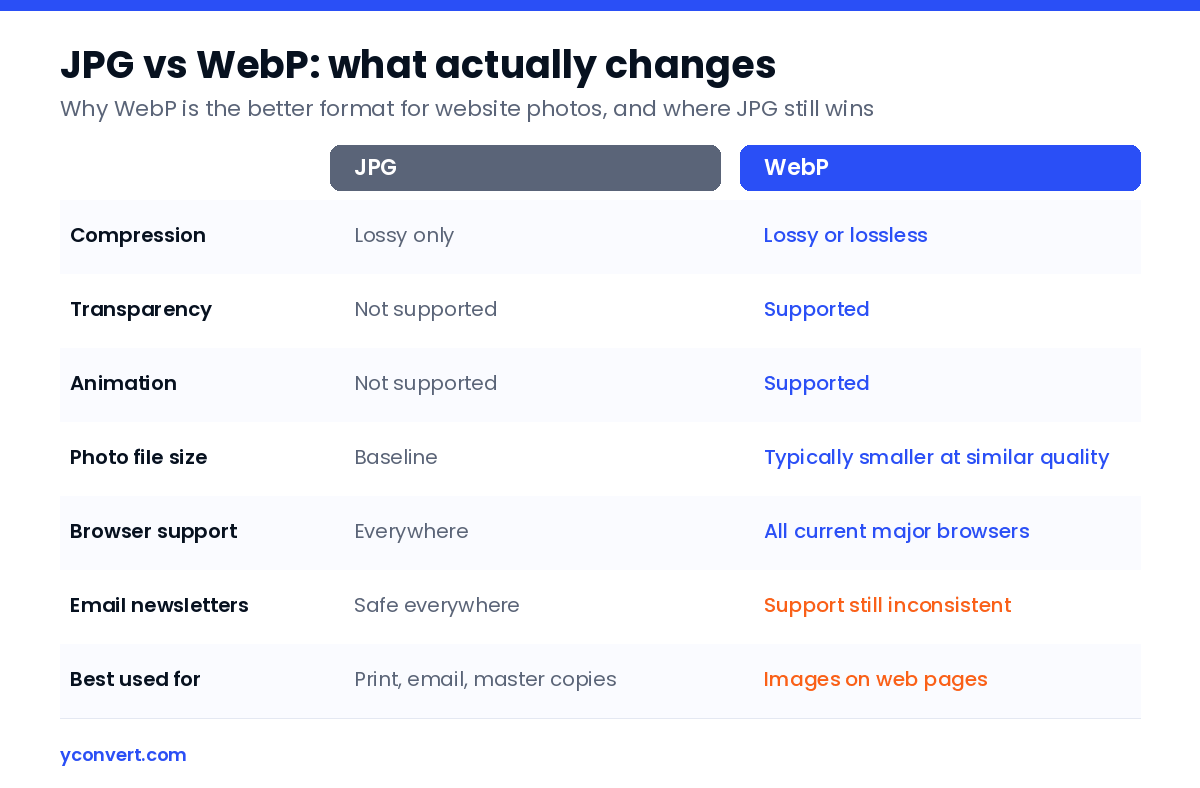
WebP was built for the web. For photos, a lossy WebP is typically noticeably smaller than a JPG that looks the same, which means pages load faster, especially on mobile data. It also does things JPG can’t: transparency and simple animation.
Browser support used to be the worry. It isn’t anymore. Every current major browser displays WebP, and the last big holdout added support back in 2020. Unless your audience is on old devices that never get updated, you can serve WebP without a JPG fallback. WordPress has accepted WebP uploads natively since version 5.8, so you don’t need a plugin just to upload the files.
Where it really shows up is your largest image. On most pages that’s a hero banner or the first product photo, and it is often the element page speed tools blame when the page feels slow to appear.
How to convert JPG to WebP, step by step
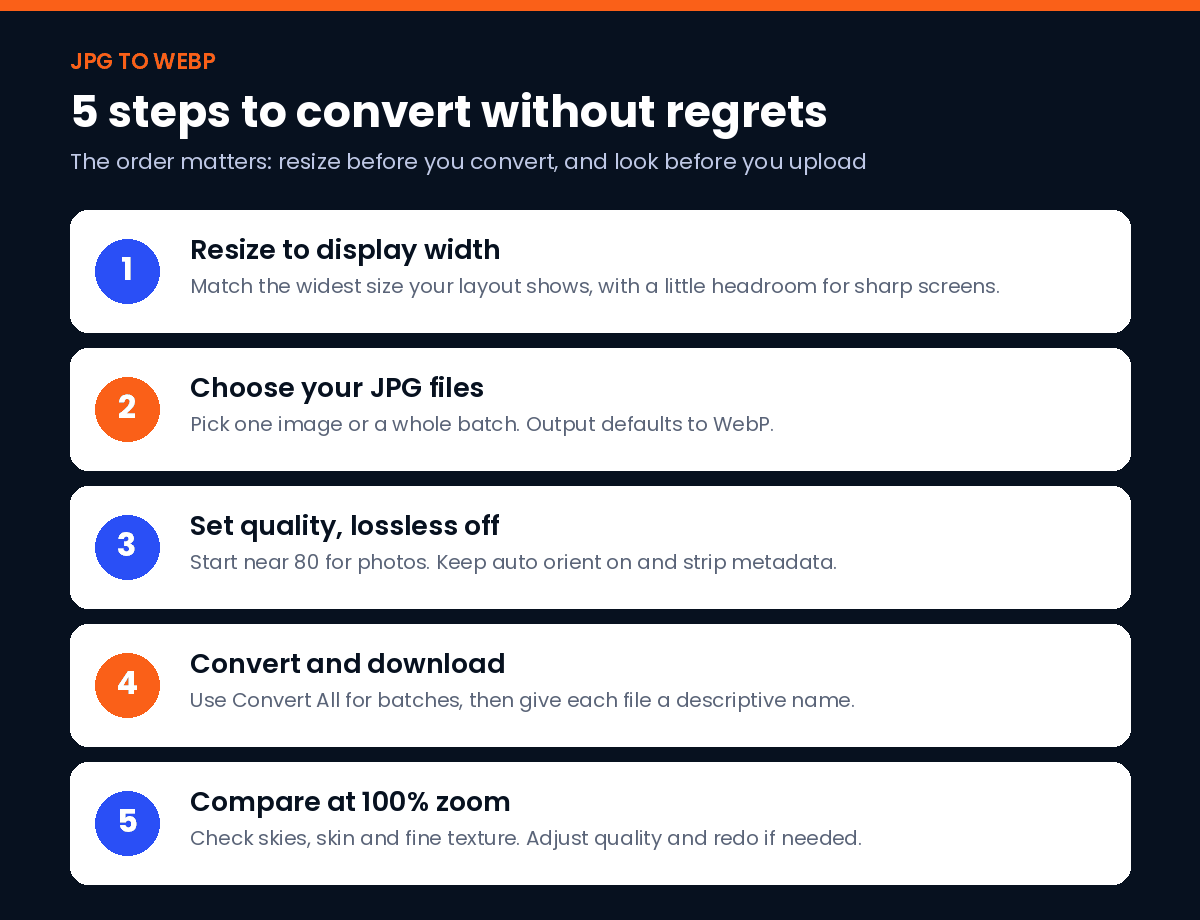
Step 1: Resize first (yes, before converting)
This is the step people skip. A camera or phone photo is often several thousand pixels wide. Your blog column might show it at 800 pixels. Converting that giant file to WebP still leaves you with a giant file, just a slightly smaller giant.
So check the display width first. A full-width banner rarely needs more than about 2,000 pixels across, and a content image usually needs far less. Resize to roughly that, keeping a little headroom for sharp screens, then convert.
Step 2: Choose your files
Open the converter and click Choose Files. You can pick a single JPG or select a whole batch. The input format is detected on its own, and the output defaults to WebP.
Step 3: Open the settings
Click the settings icon next to the file. These are the options and how I set them for website photos:
- Lossless compression: off for photos. Lossless keeps every pixel, so a detailed photo usually comes out larger than a lossy WebP and sometimes larger than the JPG you started with. It can make sense for flat graphics or black-and-white images with little detail.
- Image quality (1 to 100): start around 80. Go lower if the image is small on the page, higher if it’s a close-up where texture matters.
- Compression speed: slower settings usually squeeze out a smaller file. For a handful of images, take the slow option.
- Auto orient: leave it on. Phones store rotation in the EXIF data, and without this a portrait shot can end up sideways once that data is gone.
- Strip metadata: on, for anything public. EXIF data can include camera details and sometimes the GPS location where the photo was taken.
Step 4: Convert and download
Click Convert for one image or Convert All for the batch, then Download WebP. Give the files clear, descriptive names before you upload them. “bridal-bouquet-outdoor-ceremony.webp” tells a search engine more than “IMG_4471.webp”.
Step 5: Compare before you upload
Open the original and the WebP side by side at 100% zoom. Look at skin, sky gradients and fine patterns like fabric weave. If you see banding or smudgy texture, go up 5 to 10 quality points and convert again. If you can’t tell them apart, try going down a little. That few minutes of looking is the whole difference between “optimised” and “ruined”.
What quality setting should I use?
There’s no single correct number, and I’d be suspicious of anyone who gives you one for every image. Here’s the range I work in:
| Image type | Quality I start at | What to watch for |
|---|---|---|
| Full-width hero or banner | 80 to 85 | Banding in skies and soft gradients |
| Product photo on white | 80 | Fuzzy edges around the product |
| Blog or article image | 75 to 80 | Rarely a problem at this size |
| Small thumbnail or card | 70 to 75 | Almost invisible loss |
| Portfolio close-up | 85 to 90 | Fine texture turning waxy |
| Screenshot with text | Try lossless | Halos around letters |
Take a wedding photographer’s portfolio. Those galleries are huge, full of detail, and the images are the whole sales pitch. I’d keep quality higher there, around 85 to 90, and accept a slightly heavier page. A clothing boutique’s category grid is the opposite: dozens of small cards, each seen for a second. Quality 70 to 75 is fine, and the grid loads far quicker.
Will converting improve a blurry or compressed JPG?
No. A JPG has already thrown some detail away. WebP can’t bring it back.
And since both are lossy, converting adds a small new round of loss on top. You won’t notice it at sensible settings. You will notice it if you convert, edit, resave and convert again several times. So work from the best original you have, convert once, and keep the original somewhere safe. If you need a lossless working copy for repeated edits, that’s where PNG earns its place, which I covered in the JPG to PNG guide.
When not to convert JPG to WebP
WebP is the right choice for web pages. It isn’t the right choice for everything.
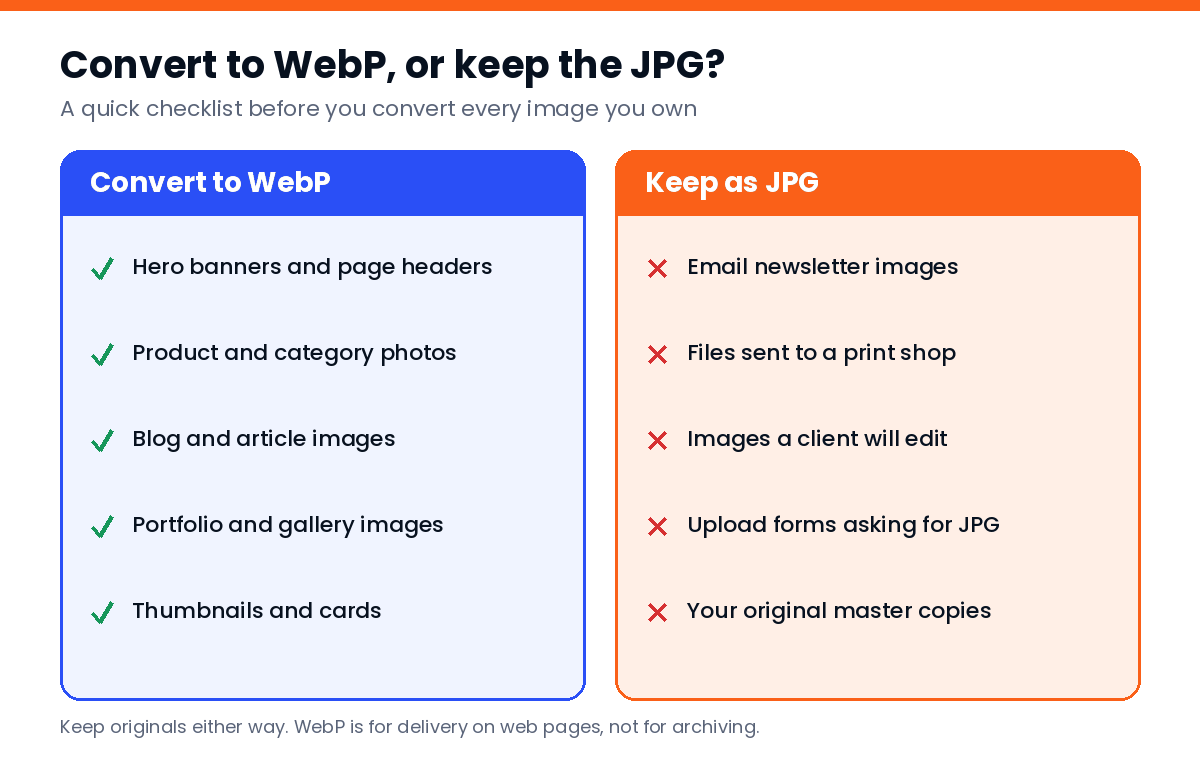
- Email newsletters. Email client support for WebP is still patchy. Say a coaching centre sends a monthly results newsletter with a banner image; a JPG is the safer bet so every reader sees it.
- Print. Most print shops and print portals want JPG, PNG, TIFF or PDF. Send them the original.
- Files you hand to someone else to edit. Plenty of desktop software handles WebP now, but not all of it, and not every client’s version.
- Upload forms that list accepted formats. If the form says JPG or PNG, believe it.
- Your master copies. Keep the originals. WebP is a delivery format, not an archive.
A quick example from an audit
Say a travel agency’s homepage opens with a big beach photo uploaded straight from a camera. The page looks fine on office Wi-Fi and crawls on a phone. I’d resize the banner to the widest size the layout uses, convert it to WebP at around 80, strip the metadata, give it a descriptive file name and alt text, and swap it in. Then I’d do the same for the tour cards below it, at a lower quality since they’re small.
Nothing else changes. Same photo, same layout. The page just appears sooner, which is what visitors notice.
An architecture firm with a project gallery is a different call. Those images are the product, so I’d keep quality high, resize carefully, and make sure only the first image or two load straight away while the rest load as the visitor scrolls.
What about AVIF?
AVIF usually compresses photos even further than WebP. Support is good in current browsers, though encoding is slower and some older tools and platforms still don’t handle it. My take: WebP is the safe default today, and if you want to test the next step, try JPG to AVIF on your hero image and compare the two side by side.
Checking the result on your site
After uploading, run the page through a speed test again. The warnings about image formats and oversized images should be gone or much shorter. If a big image is still flagged, it’s usually one of three things: it was never resized, the theme is loading a different original-size version, or a CSS background image is still pointing at the old JPG.
Images are only one part of a fast, well-built page, of course. If you’re reviewing a full page, my landing page SEO audit checklist covers the rest of what I look at, and you can also convert JPG to PNG when a graphic needs a lossless format instead. The JPG to WebP converter itself is free, so it’s worth running your heaviest page images through it this week.
FAQ
How do I convert JPG to WebP for free?
Open the JPG to WebP converter, click Choose Files, select one or more JPG images, adjust quality in the settings if needed, click Convert All and download the WebP files.
Does converting JPG to WebP lose quality?
Lossy WebP adds a small amount of new compression, but at a quality setting around 75 to 85 it is usually invisible on a web page. Compare the two files at full zoom before you upload.
Should I use lossless WebP for photos?
Usually not. Lossless WebP keeps every pixel, so detailed photos come out much larger than lossy WebP. Lossless suits screenshots, flat graphics and images with very little detail.
Do all browsers support WebP?
All current major browsers support WebP. Only old devices and browsers that have not been updated in years fail to display it, so most sites can serve WebP without a JPG fallback.
Can I use WebP images in emails?
It is safer not to. Email client support for WebP is still inconsistent, so use JPG or PNG for newsletter images and keep WebP for web pages.
Should I resize images before converting to WebP?
Yes. Resize each image to roughly the width it is displayed at on the page, then convert. An oversized image stays heavy even as WebP.